Terminal and git
Every later step in IC101 assumes you have a way to type commands and that git is installed. This page covers just enough of both to get you through the course, and it isn’t meant as a full tutorial on either. You’ll open a terminal and install git in Lab 01.
The terminal
A terminal (also called a shell, or the command line) is a text window where you type commands instead of clicking buttons. Every operating system comes with one:
| OS | Terminal app |
|---|---|
| macOS | Terminal |
| Windows | Windows Terminal, or PowerShell |
| Linux | Varies by Linux distribution (distro), for example GNOME Terminal or Konsole |
When the terminal opens, it shows a prompt, which often ends in $ or >, and waits for you to type. When a page in this course says “run this command”, it means you click into the terminal window, type or paste the command, and press Enter.
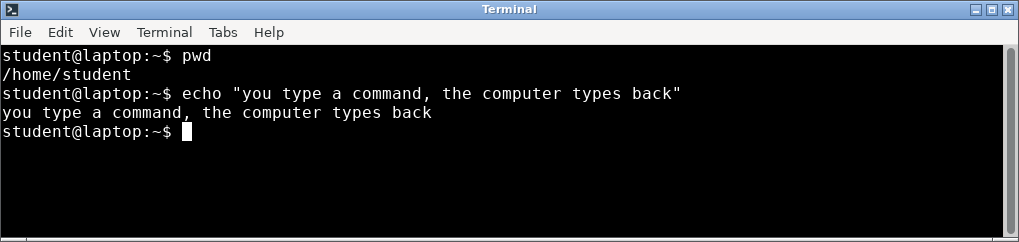 A shell prompt waiting for a command. The
$ marks where you type, but it isn’t part of the command, so don’t type the $ itself.
Git
Git is a tool for downloading a folder of files from a site like GitHub onto your computer and keeping the two copies in sync. The folder is called a repository, or repo, and copying a repo onto your computer for the first time is called cloning it.
In IC101 we only use git for one thing. In Lab 03 you run a single command, git clone, to copy the team’s shared workspace repo onto your laptop, and that’s all the git you need for this course.
Next: Lab 01: Terminal and git.