Getting started
In PCB101 you draw everything in KiCad, a free, open-source suite for schematics and printed circuit boards. It has a Schematic Editor, a PCB Editor, a Symbol Editor and a Footprint Editor, and a command-line program, kicad-cli, that runs the same checks and exports without opening a window. You’ll use all five.
IC101 and IC102 use the workbench, and so do the analog and digital courses. In PCB101 you install KiCad on your own computer instead and do all your drawing there, while the course’s checks run kicad-cli in KiCad’s own Docker image. This page explains why it’s done that way, which version of KiCad to install and where to get it on Windows, macOS and Linux, and how the numbers you see in your own KiCad relate to the ones on the lab pages. You won’t install anything while you read it. You’ll do the installing in Lab 01, Part 1.
The facts about KiCad’s downloads on this page come from kicad.org, read on November 16, 2026, and each section links the page it comes from. KiCad updates those pages with every release, so if a version number there has moved on since, believe kicad.org.
Requirements
- A computer that runs KiCad 10. KiCad’s system requirements ask for a 64-bit processor, 1 GB of RAM (“>2G RAM recommended”), up to 10 GB of disk space, and a graphics card with OpenGL 2.1 or greater that supports hardware shaders. A screen of 1280 × 1024 works, but KiCad recommends 1920 × 1080 or more, because at lower resolutions some toolbar buttons may be hidden, and then you have to reach those commands through the menus.
- Docker, which you set up in IC101. The first time a check runs, it pulls the course’s KiCad image, which is a download of 808 MB and takes 2.6 GB on disk once it’s unpacked. Lab 05 also pulls KiBot’s image, a download of 1,347 MB that takes 3.9 GB on disk.
- git, Python 3 and a GitHub account, from IC101 and IC102. Lab 01 uses Python 3 to run the script that fetches Tiny Tapeout’s boards. From Lab 03 on you keep your board in a repository of your own on GitHub, and in Lab 05 you add a GitHub Actions workflow that checks it on every push.
KiCad and the workbench
The workbench image doesn’t include KiCad. When we checked asic-edu/gui-rig:2026.08, it had no kicad, pcbnew or kicad-cli, and the student account in it couldn’t install packages. KiCad’s own Docker image doesn’t help with drawing either. KiCad’s Docker page says its images are “intended for usage of the kicad-cli binary” and that “Using the GUI environment via Docker is not supported.”
So you draw in a KiCad installed on your own computer, which is the supported way to run the editors, and the checks run kicad-cli in the official image, which is what KiCad made that image for. The checks don’t need kicad-cli or make on your own machine. They need Docker, and bash to run the course’s scripts, which on Windows means running them in WSL.
Which version to install
Install KiCad 10.0.5. Every count, message and screenshot in the course was recorded with KiCad 10.0.5, which is also the version the course’s checks run, so with 10.0.5 on your own computer the windows and numbers you see match the pages as closely as they can. It isn’t the newest release. On November 16, 2026, every platform’s download page offered 10.0.8 (KiCad 10.0.0 came out on March 20, 2026), and kicad.org keeps the older releases on a separate page, which the section for your platform below points to. If you install KiCad through a Linux distribution’s packages, or you already have a later 10.0 release, you can do the course with that; the end of this section says what to expect.
The major version matters because a KiCad file doesn’t open in an older major version than the one that saved it. KiCad’s Linux packages page puts it this way: every year a new major release “comes out, bringing new features and bug fixes, but also usually bringing file format changes that prevent downgrading. In other words, once you update to 9.x and start modifying a project, you will no longer be able to open that project in any 8.x version.” The same is true of 10.x and 9.x. When we gave a board saved by KiCad 10 to kicad-cli 9.0.9, it printed Failed to load board and exited with status 3. Everything you make in this course is saved in the 10.0 format, so KiCad 9 can’t open your work.
KiCad 10 does open boards saved by KiCad 9, and Tiny Tapeout’s SKY130 breakout, the first board you open in Lab 01, is one of those. When you open it, KiCad says so in a bar across the top of the canvas:
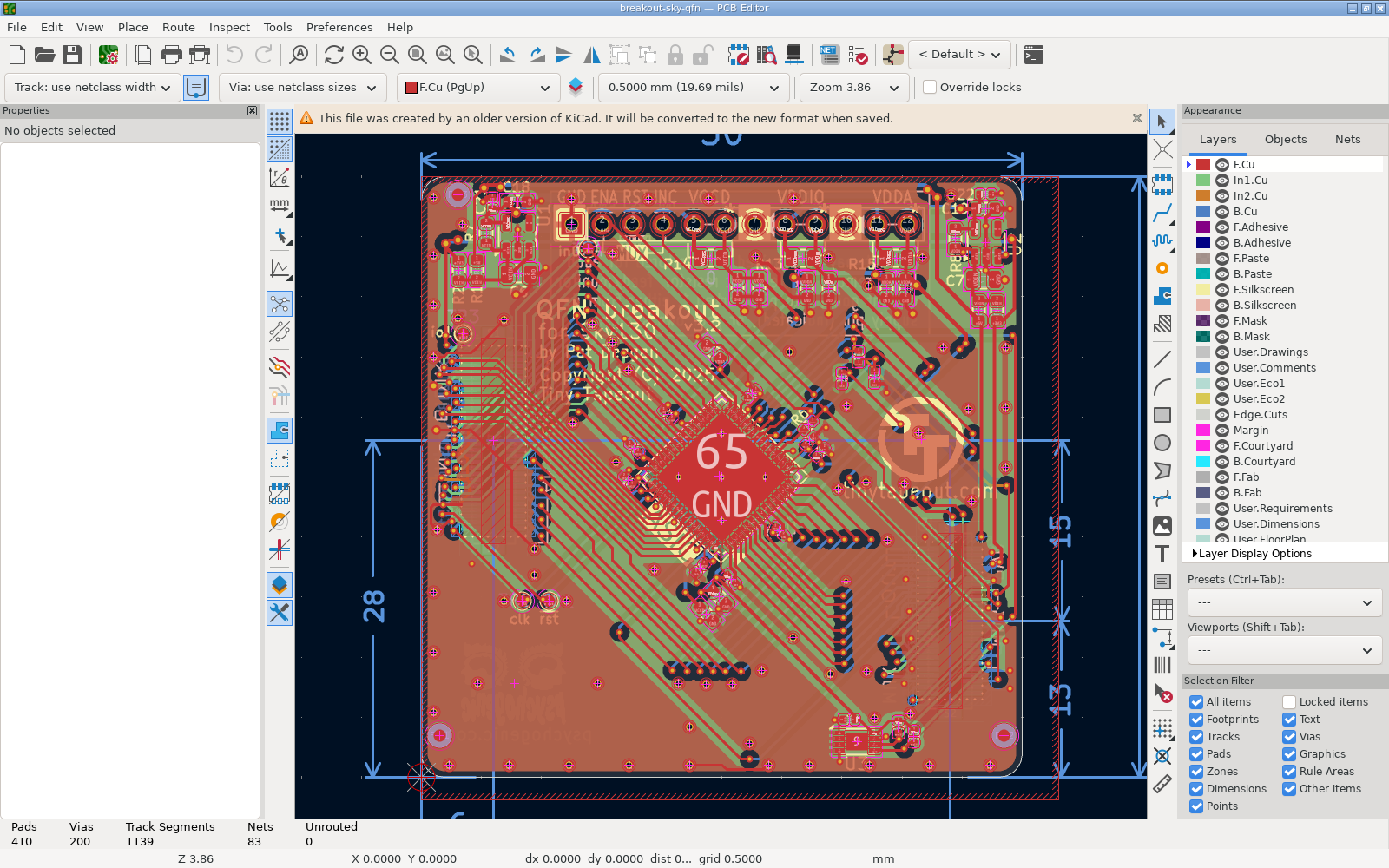
Tiny Tapeout’s SKY130 QFN breakout, rev 3.2 (TinyTapeout/breakout-pcb at 91a2bf1, Apache-2.0), open in the PCB Editor of KiCad 10.0.5. The bar under the toolbars says “This file was created by an older version of KiCad. It will be converted to the new format when saved.” The board is 50 × 50 mm. It has four copper layers, so the Appearance panel on the right lists the two inner layers, In1.Cu and In2.Cu, as well as F.Cu and B.Cu.
The conversion happens only if you save. Once you have saved the board, it’s a 10.0 file and KiCad 9 can’t open it any more, which is worth knowing before you save someone else’s project. Don’t save the boards you fetch for the labs at all, because the course’s fetch script then refuses to update them until you put the originals back with --force.
Within the 10.0 series, the patch releases (10.0.1, 10.0.2 and so on) share a file format. The three we checked in KiCad’s source, 10.0.0, 10.0.5 and 10.0.8, all write boards as version 20260206 and schematics as version 20260306, so any 10.0 release opens files saved by another. KiCad encourages everyone to update to the latest bugfix release regularly. Patch releases can still differ in what ERC and DRC report, though. On November 16, 2026 we ran the course’s checks in both 10.0.5 and 10.0.8, in KiCad’s Docker images, and compared the counts:
- On the course’s own reference boards for Labs 03 and 04 and the capstone, as they were on November 16, every count was the same. Lab 04’s board and the capstone’s Brief D board have gained a buffer since, and we haven’t run 10.0.8 on them again.
- On Tiny Tapeout’s SKY130 breakout, the KiCad 9 board you open in Lab 01, both releases found the same errors, 10 from ERC and none from DRC. The warning counts differed: 10.0.5 reported 97 ERC and 120 DRC warnings, and 10.0.8 reported 103 and 123. 10.0.5 also reported 37 schematic parity warnings that 10.0.8 didn’t, every one of them about a part’s Datasheet field, which is
~on the board and empty in the schematic. - On a copy of one of KiCad’s demo boards with a GND track laid across a VCC track, both releases found the tracks crossing and a solder mask bridge. 10.0.5 also reported the GND track as shorting to a pad on a third net, so it counted three DRC errors, and 10.0.8 counted two.
So if your own KiCad is a later 10.0 release, expect the same results on boards like the ones you’ll draw, different warning counts on older boards such as Tiny Tapeout’s, and now and then a different number of errors on a board with something wrong with it. The course’s checks always run 10.0.5 in the pinned image, whatever you have installed, and their results are the ones the labs go by.
Installing on Windows
KiCad’s Windows page says “KiCad supports Windows 10 and 11”, and it offers two installers for each release:
kicad-10.0.8-x86_64.exe, for the Intel and AMD processors that most Windows laptops have;kicad-10.0.8-arm64.exe, for a Windows computer with an ARM processor.
Those are for the current release, 10.0.8. For older releases such as 10.0.5, the same page says “Previous releases should be available for download on: https://downloads.kicad.org/kicad/windows/explore/stable”, and the list there had kicad-10.0.5-x86_64.exe and kicad-10.0.5-arm64.exe.
Each installer is code-signed, and Windows checks the signature when you run it. The page says a valid signature names KiCad Services Corporation as the signer, and links a guide to checking that yourself.
If you’re still on Windows 10, read KiCad’s system requirements as well. Its table gives Windows 10 a support date of 14 October 2025, and KiCad’s policy is that once an operating system’s maker stops releasing updates for it, KiCad isn’t tested on it any more, and a bug has to be reproduced on a supported system before the KiCad team will look at it. KiCad may well keep working on Windows 10, but Windows 11 is the supported choice.
Installing on macOS
KiCad’s macOS page has one download for all Macs, a disk image named kicad-unified-universal-10.0.8.dmg, and says “The current stable release of KiCad is supported on macOS 12 and newer.” For older releases it says “Previous releases are available for download on: https://downloads.kicad.org/kicad/macos/explore/stable”, and the 10.0.5 disk image there is kicad-unified-universal-10.0.5.dmg.
The system requirements page is stricter than the macOS page. It says KiCad supports the macOS versions that Apple currently supports, which it takes to be the three most recent major releases, and its table gives approximate end-of-support dates of 1 November 2025 for macOS 13, 1 November 2026 for macOS 14 and 1 November 2027 for macOS 15. By that page’s own dates, only macOS 15 was still supported on November 16, 2026, and its table lists no newer macOS at all, so it looks out of date. If your Mac runs a recent macOS, both pages cover you. On an older one, KiCad still offers you the download, but a bug you hit there may have to be reproduced on a supported version before the KiCad team looks at it.
Installing on Linux
KiCad publishes its own Linux build on its Linux page: “The current stable release of KiCad is available as an AppImage for Linux x86-64 systems.” It comes in two versions, each packed in a .tar file:
- Full,
kicad-10.0.8-x86_64.AppImage.tar, which includes the 3D packages (the 3D models of parts that the 3D viewer draws); - Lite,
kicad-10.0.8-x86_64-lite.AppImage.tar, without them.
For older releases, the page says “Previous releases are available for download on: https://downloads.kicad.org/kicad/linux/explore/stable”, where the 10.0.5 versions of the same two are kicad-10.0.5-x86_64.AppImage.tar and kicad-10.0.5-x86_64-lite.AppImage.tar.
You can also install KiCad through your distribution. The Linux packages page lists what KiCad supports:
- Ubuntu: KiCad runs its own PPA for each release series, and for 10.0 it’s
ppa:kicad/kicad-10.0-releases. KiCad recommends it over Ubuntu’s own package, because “the latter is usually outdated”. The system requirements give Ubuntu 24.04 LTS support until April 2029, and list Ubuntu 22.04’s support as ending in May 2025. - Fedora: the
kicadpackage in your Fedora release, or the newest stable build from KiCad’s Copr repository,@kicad/kicad-stable. - Flatpak: KiCad on Flathub, which the page calls “our recommended way to install the latest version of KiCad on any distribution other than Ubuntu and Fedora”.
- Debian: a package in Trixie and in Trixie’s backports. The page doesn’t say which KiCad version each one is, so check that it’s 10.0 before you install it.
Arch Linux, FreeBSD, Gentoo, openSUSE, Linux Mint and Guix are listed too, as platforms the KiCad team doesn’t officially support.
The page heads the PPA’s commands “10.0.8 Stable Release”, and it doesn’t say how to get an older 10.0 release from any of these. The nearest it comes is for Ubuntu, where it says “Older stable releases of KiCad are available in other similarly-named PPAs” and gives sudo apt install kicad=<version> for going back from the testing PPA to a stable release. So if you install from your distribution, you’ll most likely have a later 10.0 release than the course’s, and the end of Which version to install says what that changes.
Whichever way you install it, run KiCad in an X11 session if you can. The same page says “The KiCad team does not support running KiCad on Wayland due to the much higher incidence of related bugs and problems”, and that bug reports about freezes, crashes, window size and position, focus and similar problems “will not be investigated unless they can be reproduced on an X11 system”.
Your KiCad and the course’s checks
Every lab’s check runs through a script in labs/common/ that starts kicad/kicad:10.0.5, named by its digest (sha256:182c8005cb77…, in full in labs/common/kicad-image.txt) so that it’s the same build on every machine, and runs the check inside it. In every lab except Lab 06, the check includes the course’s board check, which uses kicad-cli to run ERC on the schematic and DRC on the board, compares the board with the schematic, and prints the counts, followed by PASS or FAIL. Lab 01 runs it on Tiny Tapeout’s breakout, Lab 02 on a small board with your footprint on it, and Labs 03 to 05 and the capstone on your own board. Lab 05’s check also runs KiBot, in KiBot’s own image. Lab 06’s check reads your review of a seeded board and your fabricator’s quote, and doesn’t run ERC or DRC. Each lab shows you the command.
Your own KiCad can run the same ERC and DRC from its menus, and you’ll do both in Lab 01. The errors it finds should be the same as the checker’s, but the warning counts can differ, because many of KiCad’s warnings compare the parts in your design with the libraries KiCad knows about, and which libraries those are depends on how KiCad was set up on that machine. Here is the same board, Tiny Tapeout’s SKY130 breakout, checked in two setups:
| ERC errors | ERC warnings | DRC errors | DRC warnings | |
|---|---|---|---|---|
| The course’s checker | 10 | 97 | 0 | 120 |
| The same image with no library tables at all, and without Tiny Tapeout’s own library beside the board | 10 | 236 | 0 | 130 |
Only the warning counts changed, so the labs give warning counts only for the checker’s setup, and when you look at a board in your own KiCad they ask you about kinds of warning rather than numbers. If your KiCad shows a different number of errors from the lab page, though, something is different, and it’s worth finding out what.
Course layout
The course path on the home page lists every page in the order you should work through them. Each row is one of two kinds:
- A Read row points to guide pages like this one, which explain the ideas with figures and worked examples. You don’t need KiCad open to read them.
- A Do row points to a lab, and the labs are where you run things.
Each lab is split into numbered parts with numbered steps. Most parts open with the question they answer and end with a check, which says what you should see if what you did worked. In at least one part of every lab you make something yourself, such as a footprint, a schematic, a routed board or a bring-up plan, and the lab’s final check runs on what you made, never on files the course ships.
Some steps ask you to write down what you expect before you run something, so that you have a prediction of your own to compare the result with. When a step asks a question, its answer is in a collapsed block right under it; try to answer it yourself before you open the block. (In the PDF version of a page, the answers are collected at the end of the page instead.)
After its last part, every lab has a Finishing section that tells you how you’ll know you’re done, asks any questions you can answer from your own work, and says what to submit. Then comes a “Going further (optional)” section with extra reading and experiments. None of the required parts depends on it, and the lab’s time estimate leaves it out.
The files each lab uses are in the course’s GitHub repo under labs/, apart from Tiny Tapeout’s boards, which the repo doesn’t store. A script fetches those from Tiny Tapeout’s own repositories at fixed commits, so you always get the same version of each board, and Lab 01 has you run it.
Getting help
The course is self-paced, but you don’t have to work through it alone.
- Ask in the team Discord. No question is too basic.
- Quote the exact message, and say where you saw it: a dialog in KiCad, the checker’s output, or a report file. Paste the text rather than paraphrasing it, along with the command you ran, if there was one.
- Say which KiCad you used. For your own install, that’s the version in KiCad’s About dialog. For the checker, it’s the
kicadandimagelines at the top of its output. - Post a screenshot. A wiring or placement problem that’s obvious in a picture can be very hard to describe in words.
- If a page doesn’t match what you see, tell us. We ran the commands in the labs before writing them down, apart from the pushes to GitHub, which we couldn’t make from the machine we wrote the course on, and we copied every output and count from a real run. So a mismatch means something has changed, and we want to know.
Check yourself
Answer these before you start Lab 01.
A friend on the team has KiCad 9.0 installed and wants to look at your Lab 03 board. What happens when they open it?
TipAnswerIt doesn’t open. Your board is saved in KiCad 10.0’s file format, and KiCad 9 can’t read a newer format. When we gave a 10.0 board to
kicad-cli9.0.9, it printedFailed to load board. Your friend needs KiCad 10.0, or you can send them the PDF and image exports you’ll make in Lab 05.You run DRC in your own KiCad on the board from a lab, and it reports a different number of warnings from the lab page, but the same number of errors. Is something wrong?
TipAnswerProbably not. Many warnings compare the board’s footprints with the libraries your KiCad has set up, so the count depends on your installation. The lab page’s counts come from the checker’s setup. The error counts stayed the same in every library setup we tried, so a different error count would be worth looking into.
Why do the checks run in Docker when you draw in a KiCad installed on your own computer?
TipAnswerKiCad’s Docker image is made for
kicad-cli, and KiCad doesn’t support running its editors in Docker, so you draw in KiCad on your own computer. The checks use the image because it’s pinned to one build by its digest, so they give the same counts on your laptop, on everyone else’s and in CI.You open Tiny Tapeout’s SKY130 breakout and KiCad says the file was created by an older version. What changes if you save it?
TipAnswerKiCad converts it to the 10.0 format when it saves, and from then on KiCad 9 can’t open that copy. The course’s fetch script also refuses to update a board you’ve changed until you put the original back with
--force.
Next: What a board does for a chip.