XSchem cheat sheet
This page collects the XSchem keys you need, sorted by when you’ll need them.
XSchem ships 154 key bindings and 16 mouse bindings (keys.help in the image lists them), and most of them are a single keystroke. You’ll use only eleven of them for almost all of AD103, so this page lists those eleven first, then the rest grouped by task, and then the four keys that don’t do what you’d expect.
Where these keys come from
Every key on this page comes from two files inside the course image, and a key appears here only if both files agree on it. This command prints the XSchem version and then the first file, keys.help:
docker run --rm --user "$(id -u):$(id -g)" hpretl/iic-osic-tools:2026.08 --skip \
  bash -c 'xschem --version; cat /foss/tools/xschem/share/xschem/keys.help'
XSCHEM V3.4.8RC
Copyright (C) 1998-2026 Stefan Schippers/foss/tools/xschem/share/xschem/keys.help: the binding list XSchem itself shows./foss/tools/xschem/share/xschem/xschem.tcl: the menu definitions, each carrying an-acceleratorlabel.
The two files disagree in exactly one place: Delete files is Ctrl-D in keys.help but Shift-D in the menu, so we left that key off this sheet. Inside XSchem, ? opens the help window and / shows the whole binding list full-screen.
The XSchem window
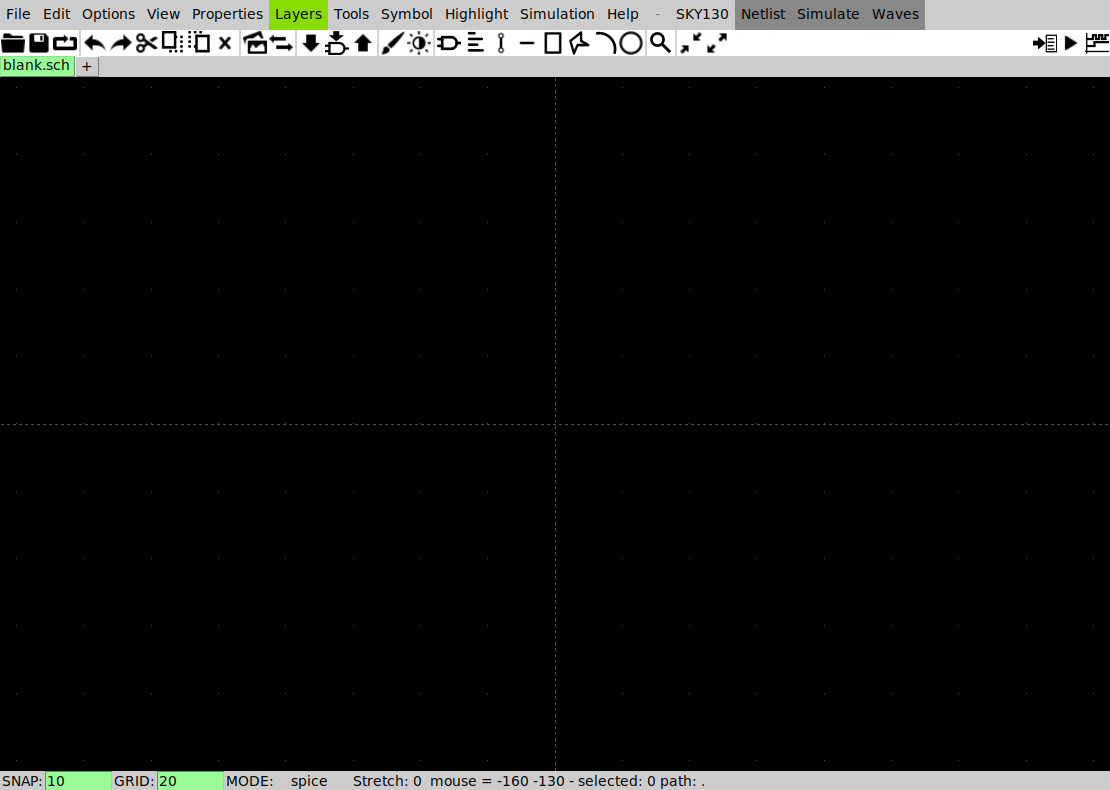
Three parts of that window are worth knowing:
| Where | What it tells you |
|---|---|
SKY130 in the menu bar |
which PDK xschemrc loaded. If it says IHP, stop and see Wrong PDK below. |
Netlist / Simulate / Waves |
the three buttons that let you netlist, simulate and look at results without going to a terminal. The menu shows no accelerator label for them, but the keys are n and s, and for waves you use the Waves menu. |
| status bar | SNAP: 10 GRID: 20 MODE: spice. MODE: spice means the netlister will write SPICE rather than Verilog. SNAP is the grid your clicks land on, and a wire end that misses that grid point by one step is the most common reason a wire looks connected when it isn’t. |
Windows that open off screen
- The status bar is hidden. On the default 1280×800 desktop, XSchem opens its window 764 px tall and 29 px down from the top of the screen, which puts the bottom 24 px of it behind the Xfce taskbar. Drag the window’s bottom edge up a little, or start the desktop bigger (
VNC_RESOLUTION=1920x1080 ./scripts/start_vnc.sh). - The symbol chooser (Shift+I) opens partly off screen. XSchem positions it relative to the main window, and because that window is nearly as wide as the screen, on a 1280-wide desktop the chooser lands mostly off the right edge. The library pane, the file list, the Search box and OK can all be out of view. Drag it back by the part of the title bar you can see (or Alt-drag anywhere in it), and it will stay where you put it for the rest of the session. The chooser also remembers the directory you were last in, so click Home to jump back to the top of the tree.
- The Edit Properties window that q opens behaves the same way.
The eleven keys you need
| Do this | Key |
|---|---|
| Zoom to fit the whole schematic | f |
| Place a symbol from the library | Shift+I |
| Draw a wire | w |
Edit the selected object’s properties (W, L, value, name) |
q |
| Move the selection | m |
| Duplicate the selection | c |
| Rotate the selection | Shift+R |
| Get out of whatever mode you are in | Escape |
| Undo | u |
| Save | Ctrl+S, then Yes in the save file? box it always raises |
| Write the SPICE netlist | n |
Those eleven are enough to draw every schematic in AD103. The rest of the page is detail you can look up when you need it.
View
| Action | Key |
|---|---|
| Zoom to fit | f |
| Zoom in / out | Shift+Z / Ctrl+Z, or the scroll wheel |
| Zoom to a box you drag | z |
| Pan | hold Space and drag, or drag with the middle button |
| Redraw / abort / unselect | Escape |
| Light ↔︎ dark colour scheme | Shift+O |
| Halve / double the snap grid | g / Shift+G |
| Help window | ? |
| Full-screen picture of every binding | / |
Place
| Action | Key |
|---|---|
| Insert symbol | Shift+I, or Insert, or Tools → Insert symbol |
| Insert symbol, browser stays open | Ctrl+I (also Shift+Insert) |
| Wire | w |
| Wire whose start snaps to the nearest pin | Shift+W |
| Wire whose far end snaps too | Shift+W, then hold Shift for the closing click |
| Text label (a comment, not a net name) | t |
| Line / rectangle / polygon (drawing, not circuitry) | l / r / p |
| Net label (name a wire) | Alt+l places lab_pin.sym |
| Schematic input port | Ctrl+P |
| Schematic output port | Ctrl+Shift+P |
Most laptops have no Insert key, so use Shift+I instead.
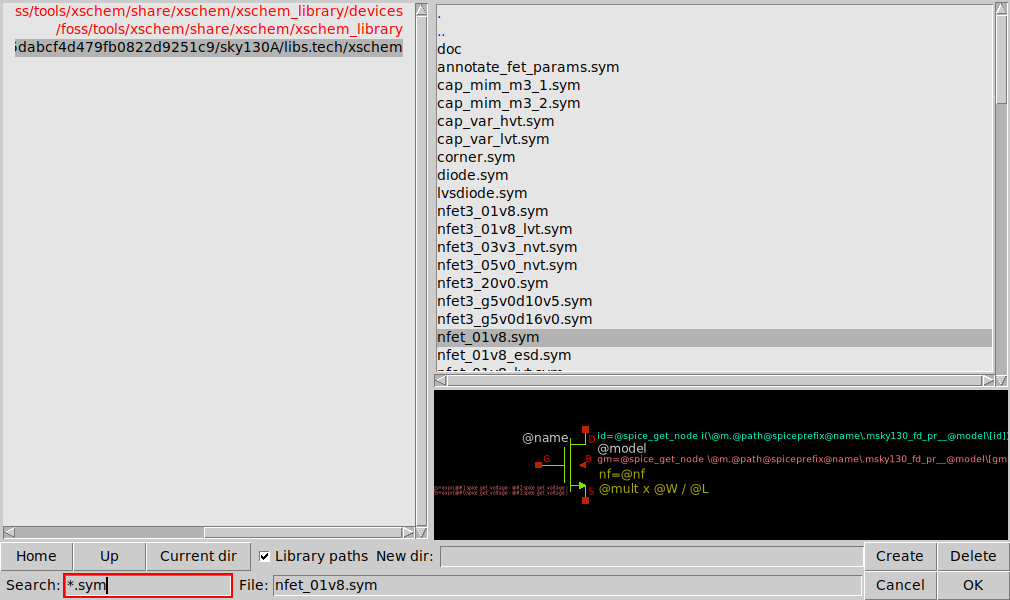
Shift+I opens this chooser. Here we have clicked the sky130A line on the left and opened sky130_fd_pr, so it shows the PDK’s whole symbol library with no filter applied. The Search box takes a glob rather than a substring (nfet_01v8*.sym, not nfet), and the pane at the bottom previews whichever file is selected.
Select and edit
| Action | Key |
|---|---|
| Select | click; Shift-click adds to the selection |
| Select by area | drag with the left button |
| Select every connected wire, label and pin | Shift+right-click |
| Select all | Ctrl+A |
| Unselect the object under the pointer | d |
| Edit properties | q |
| Edit properties in a text editor | Shift+Q |
| Move | m |
| Move, stretching the wires that are attached | Ctrl+M |
| Duplicate | c |
| Delete | Delete |
| Rotate 90° | Shift+R |
| Flip left–right / top–bottom | Shift+F / Shift+V |
| Rotate or flip in place, each object about its own anchor | Alt+r / Alt+f / Alt+v |
| Undo / redo | u / Shift+U |
| Descend into a symbol’s schematic | e |
| Descend into a symbol’s drawing | i |
| Come back up | Ctrl+E or Backspace |
| Find by name or regexp | Ctrl+F |
| Tcl console | = |
Keys that surprise you
Your hands learned what these four keys do in other editors, but in XSchem each of them does something else.
| You press | You expect | XSchem does |
|---|---|---|
| r | rotate | starts drawing a rectangle |
| x | flip in x | starts a second XSchem process, with a whole new window |
| c | copy to clipboard | duplicates the selection immediately, attached to the pointer |
| p | plot this net | starts drawing a polygon |
x is the worst of the four, because the second window looks exactly like your first, and you can spend a minute editing the wrong copy. We checked this with a scripted run under Xvfb that starts one XSchem, sends it a single key, and then counts the XSchem processes:
### rect    : xschem processes now = 1     (key 'r')
### poly    : xschem processes now = 1     (key 'p')
### copy    : xschem processes now = 1     (keys ctrl+a, 'c')
### newsess : xschem processes now = 2     (key 'x')
A single press of x started one extra process. The other three rows are the control, and they show that none of those keys starts a second editor.
The rotate you want is Shift+R, the flip is Shift+F, the clipboard copy is Ctrl+C, and the way to look at a waveform is the Waves menu. If you land in rectangle or polygon mode by accident, Escape gets you out and u removes anything you drew.
Checking wire connections
How XSchem draws a wire end or a symbol pin tells you how many connections it has:
| What you see | What it means |
|---|---|
| hollow square | connected to nothing |
| nothing drawn | exactly one connection |
| solid dot | two or more connections |
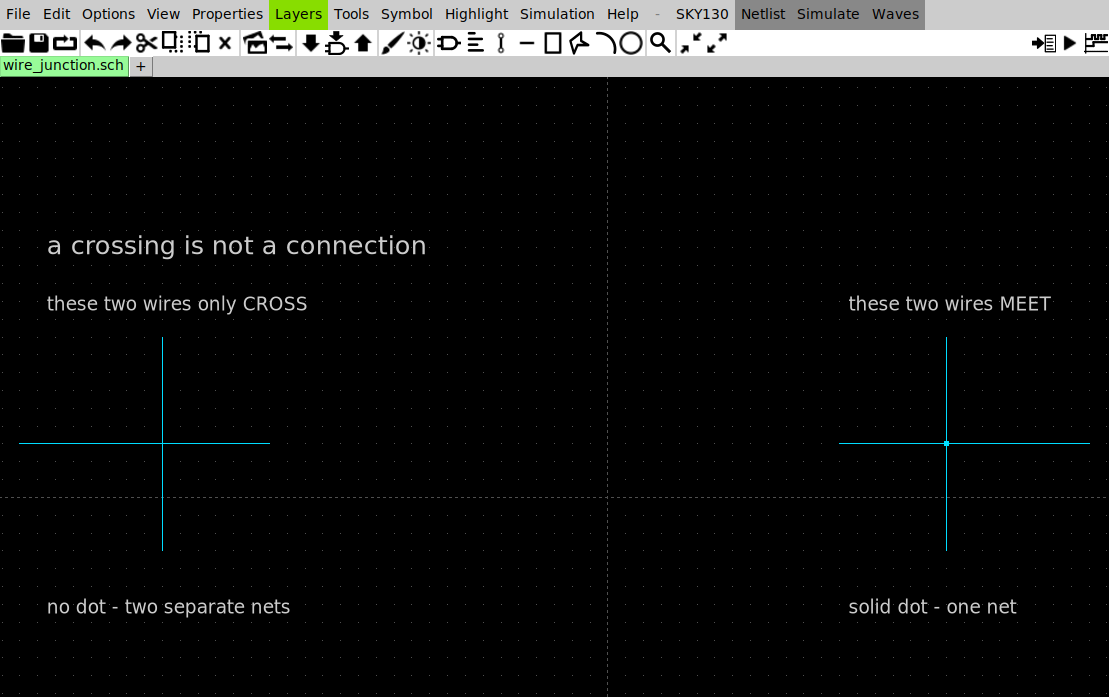
On the left, two wires cross and XSchem draws nothing at the crossing. On the right, four wire ends land on one grid point and XSchem draws the dot. The dot is the only difference between the two pictures.
Crossing wires do not connect. Two wires connect only where one wire’s endpoint lands on the other wire or on a pin, and “lands on” means on the same snap grid point, which is why the SNAP: 10 in the status bar matters. A wire end that stops one grid step short looks identical to a connected one at normal zoom, so press f, zoom in on every junction, and look for hollow squares.
You can also connect by name: two lab_pin symbols carrying the same label are one net, however far apart they are drawn. AD103’s testbenches use this for supplies and gates.
Netlist and simulate
| Action | How |
|---|---|
| Write the SPICE netlist for this schematic and everything under it | n, or the Netlist button |
| Netlist only this level, no hierarchy | Shift+N |
| Run the simulator | s (it asks Run circuit simulation? first), or the Simulate button (which runs without asking) |
| Look at results | the Waves menu: Op, Dc, Ac, Tran |
| Annotate DC operating point onto the schematic | Waves → Op Annotate |
| Fire a launcher (one of the green arrows on a testbench) | click it once, then Ctrl+H |
XSchem documents launchers as Ctrl-click, and Ctrl-click does work, but it misses if your hand drifts, because the launcher fires only if the selection is exactly one object and the pointer did not move between press and release. If the pointer drifts by three pixels, nothing happens and XSchem gives no message. Clicking the arrow to select it and then pressing Ctrl+H doesn’t depend on a steady hand, so the labs use that instead.
Netlisting from a terminal
export PDK=sky130A
cd labs/lab-01-first-schematic/xschem
xschem -n -q -x nmos_probe.sch
The flags are -n to write the netlist, -q to quit when it’s done, and -x to run without graphics, and this is the command every AD103 Makefile runs. The export is required: if you leave it out, you get the silent failure described below. The command writes simulation/nmos_probe.spice next to the schematic:
** sch_path: /work/xschem/nmos_probe.sch
**.subckt nmos_probe
XM1 d g 0 0 sky130_fd_pr__nfet_01v8 L=0.15 W=1 nf=1 ad=0.29 as=0.29 pd=2.58 ps=2.58 nrd=0.29 nrs=0.29 sa=0 sb=0 sd=0 mult=1
Vgs g 0 1.8
Vds d 0 1.8
**.ends
.end
Notice the parameters the symbol added that you never typed: ad, as, pd, ps, nrd and nrs. They describe the source and drain diffusion geometry, which the symbol computes from W and nf. The junction capacitances that come from that geometry are part of the delay, so a deck you write by hand without them simulates faster than the real circuit, and its delays are optimistic.
-o OUTDIR is ignored when xschemrc contains set local_netlist_dir 1, and every AD103 lab’s xschemrc does, as this run shows:
$ xschem -n -s -q -o out nmos_probe.sch ; echo "exit=$?"
exit=0
$ ls out
$ ls simulation
nmos_probe.spice
XSchem exits with status 0 and leaves out/ empty, because the netlist went somewhere else. Look for it in simulation/, next to the schematic.
Failures that exit 0
XSchem exits with status 0 even when the netlist it wrote is broken, so its exit status doesn’t tell you whether it worked. Check the netlist itself instead of $?.
Wrong PDK
docker run --rm ... hpretl/iic-osic-tools:2026.08 --skip bash -c 'echo "PDK=$PDK"'PDK=ihp-sg13g2The image ships with the IHP SG13G2 PDK selected rather than SKY130. XSchem reads $PDK at launch to decide which symbol library to load, and if it picks the wrong one, every sky130_fd_pr symbol resolves to nothing. XSchem still exits with status 0, and the netlist looks like this:
** sch_path: /work/xschem/nmos_probe.sch
**.subckt nmos_probe
*  M1 -  nfet_01v8  IS MISSING !!!!
Vgs g 0 1.8
Vds d 0 1.8
**.ends
.end
The menu bar tells you before the netlist does, showing IHP instead of SKY130:
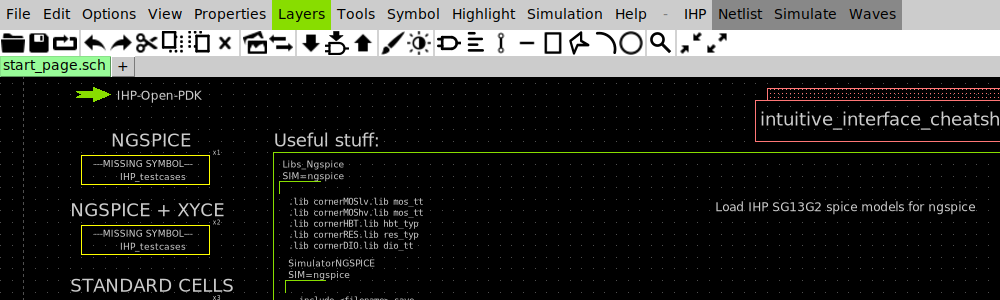
docker run -e PDK=sky130A does not fix it, because the image’s entrypoint sets PDK after Docker does and overwrites the value you passed with -e. We checked:
docker run --rm -e PDK=sky130A ... --skip bash -c 'echo "PDK=$PDK"'PDK=ihp-sg13g2Instead, set it inside the container’s command: run export PDK=sky130A, or set it on the command itself (PDK=sky130A xschem -n -q -x nmos_probe.sch), or let the lab Makefile do it. Every AD103 lab that ships a schematic already does this, with export PDK := sky130A near the top of the Makefile in lab-01-first-schematic, lab-02-diode-iv, lab-03-mosfet-regions and capstone-inverter. lab-02-diode-iv goes further and pins PDK inside its own xschem/xschemrc, because that lab promises to run with no environment set up at all and its bench has to keep that promise when you open it by hand. (lab-04-wl-knob and survival-card ship no schematic and never launch XSchem; survival-card pins only PDK_ROOT, which is all its .lib lines need.)
Make this check a reflex: grep -c 'IS MISSING' xschem/simulation/*.spice must print 0.
The others
| Symptom | Cause |
|---|---|
IS MISSING !!!! and no devices in the netlist |
XSchem can’t find the symbol, either because $PDK is wrong or because the symbol is not on XSCHEM_LIBRARY_PATH. |
netlist looks right, ngspice says could not find a valid modelname |
a u suffix on W or L. See Reading a SKY130 device model. |
| a net you were sure you drew is missing from the netlist | a wire endpoint that stops one snap step from the pin. Zoom in and look for a hollow square. |
| ports wired to the wrong nets in a hierarchical cell | the .sym pin order does not match the order the ipin/opin/iopin symbols appear in the schematic. |
can't create directory ".../sky130_tests/simulation": permission denied on Netlist |
the open schematic is the PDK’s own start page, sky130_tests/top.sch, which lives inside the read-only PDK. With local_netlist_dir 1 the netlist goes next to the schematic, and XSchem can’t write anything there. Open a schematic in your own directory. The AD103 lab xschemrc files also set XSCHEM_START_WINDOW {} so a bare xschem & never lands there. |
file opening for write failed! on save |
the same cause: you’re editing a file in a read-only directory. Your drawing is still in the window, so use File → Save as to save it into your own folder. |
net1, net2, … in the netlist |
a pin that touches nothing. XSchem invents a name for it and exits 0, and Lab 01, Part 7 shows what ngspice does with one. You can check for them with grep 'net[0-9]' simulation/*.spice. |
| a blank rectangle with a name instead of a circuit | an unexpanded subcell. Descend into it with e, come back with Ctrl+E. |
| XSchem opens the wrong start page, or symbols vanish after it worked yesterday | you started it from a different directory, so it read a different ./xschemrc. |
make mine says FAIL - the netlist has no nfet_01v8 right after you drew one |
you didn’t press Yes in the Ask Save window, so make mine netlisted the last version you saved. |
Where files land
| Thing | Path |
|---|---|
Netlists, with set local_netlist_dir 1 |
simulation/ beside the schematic |
| Netlists, without it | ~/.xschem/simulations/, inside the container, so it is gone when the container is removed. This default is documented on line 62 of the PDK’s own xschemrc. |
| XSchem’s own config | XSchem looks for --rcfile FILE, then ./xschemrc in the launch directory, then ~/.xschem/xschemrc, and reads only the first one it finds, so a project ./xschemrc replaces the home one rather than adding to it |
| The window XSchem opens with no filename | XSCHEM_START_WINDOW, which the PDK’s xschemrc sets to sky130_tests/top.sch (read-only). If you set it to {}, you get a blank untitled.sch in the launch directory |
| SKY130 symbols | /foss/pdks/sky130A/libs.tech/xschem/sky130_fd_pr/ |
Generic symbols (gnd, vsource, lab_pin, ipin) |
/foss/tools/xschem/share/xschem/xschem_library/devices/ |
There is no XSCHEMRC environment variable (the string doesn’t appear once in XSchem’s xschem.tcl), so setting one does nothing.
Next comes the other half of the loop, The ngspice survival card, which covers what happens after you press n.